The Original Gay Porn Community - Free Gay Movies and Photos, Gay Porn Site Reviews and Adult Gay Forums

  • Welcome To Just Us Boys - The World's Largest Gay Message Board Community

    In order to comply with recent US Supreme Court rulings regarding adult content, we will be making changes in the future to require that you log into your account to view adult content on the site.
    If you do not have an account, please register.
    REGISTER HERE - 100% FREE / We Will Never Sell Your Info

    PLEASE READ: To register, turn off your VPN (iPhone users- disable iCloud); you can re-enable the VPN after registration. You must maintain an active email address on your account: disposable email addresses cannot be used to register.

Anyone know PSP 7?

Kulindahr

Knox's Papa
JUB Supporter
50K Posts
Joined
Jan 15, 2006
Posts
123,002
Reaction score
4,586
Points
113
Location
on the foggy, damp, redneck Oregon coast
I use Paint Shop Pro 7 for doing image work. I had no problem on my last computer, but I couldn't find quite the same version to download for my newer machine, and then the help function won't work (despite downloading a "fix" from Microslop).

A better version would be nice, being able to get to Help would be really nice. But my big problem right now is that when I put crisp images down on a blank window (I'm making maps for my JUB story "Fit for Life"), and then save, the colors bleed all over the place. I'm almost positive there's a setting I can use to fix that, but I can't remember it or find it.

Anyone?
 
can you post an example of the "bleeding over"? and maybe a screenshot of how it should look like?
 
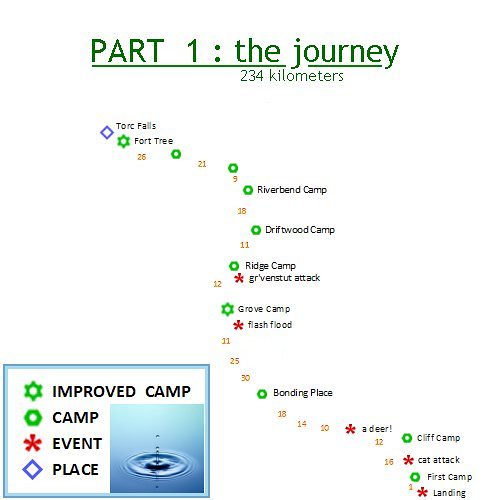
I did this on PSP 7:

5347749045_ba4aec0169.jpg


I hope the bleeding shows (I can see it): everything is supposed to be crisp and clear, solid colors with pure white background.

I actually spent a lot of time cleaning that up before I uploaded it to flickr, too.
 
I only see that "bleeding" on the symbols

and it looks like anti-aliasing .. but a bit too much of it.

i don't know PSP but maybe there is something to disable this. also you could try to save the file as gif or png, since the jpg compression might be part of the problem.
 
I only see that "bleeding" on the symbols

and it looks like anti-aliasing .. but a bit too much of it.

i don't know PSP but maybe there is something to disable this. also you could try to save the file as gif or png, since the jpg compression might be part of the problem.

So I want anti-aliasing off?

I had my old preferences on the old PSP set where I liked, and forgot what much of it even means....


Should jpg compression be a problem when I'm not changing the image size?
 
I'm not all that familiar with PSP since I'm a PhotoShop freak! But, what I'm seeing doesn't seem to be a result of jpeg compression, nor anti-aliasing, which makes "stepped" pixel curves look "smooth". (You can't split a pixel, but anti-aliasing can make it look like you did.)

What I'm seeing, especially around your "Headline", is a not entirely white, or, better yet, transparent, text/image box. That "dirt" is even showing up in your smaller windows. When you create your boxes, keep an eye on what color is indicated.

I could tell you how to check, and/or change, that in PhotoShop, but I'm not sure about PaintSlop! Sorry! ](*,)

I am totally digging your maps, though! Gives me a better view of "F4L"! :=D: And, I'm glad to see that my mental image, through your words, wasn't that far off from what you're drawing! ..|

Keep smilin'!! :kiss:(*8*)
Chaz :luv:
 
I'm not all that familiar with PSP since I'm a PhotoShop freak! But, what I'm seeing doesn't seem to be a result of jpeg compression, nor anti-aliasing, which makes "stepped" pixel curves look "smooth". (You can't split a pixel, but anti-aliasing can make it look like you did.)

What I'm seeing, especially around your "Headline", is a not entirely white, or, better yet, transparent, text/image box. That "dirt" is even showing up in your smaller windows. When you create your boxes, keep an eye on what color is indicated.

I'm creating the text in Word Pad, then copying and pasting -- for a lot of text, that's faster. And the bleeding, or maybe scattering is a good term, doesn't seem to start right away.
So does Word Pad not have a truly white background? And if that's the trouble, why is the "dirt" always basically the color of the things it's around?

I could tell you how to check, and/or change, that in PhotoShop, but I'm not sure about PaintSlop! Sorry! ](*,)

I am totally digging your maps, though! Gives me a better view of "F4L"! :=D: And, I'm glad to see that my mental image, through your words, wasn't that far off from what you're drawing! ..|

I must be writing it fairly, then!
 
I think it's JPG compression. Turn compression down or save it as a different file type to see the difference. Haven't used PSP in a while so I can't remember the exact menu, but it should be an option when you go to something like Export -> JPG.
 
, nor anti-aliasing, which makes "stepped" pixel curves look "smooth".

that's exactly what is happening to the symbols ..

the background of wordpad does not matter since you just copy text.

why don't you try the things that i suggested?
 
that's exactly what is happening to the symbols ..

the background of wordpad does not matter since you just copy text.

why don't you try the things that i suggested?

I finished rebuilding the map legend as a .gif. Now I have clean symbols to work with; time to start redoing the map piece by piece -- I decided no way was I going to actually redraw it! But I'll save it as a .gif and see what happens.

I did clean up a lot on the map itself, on all the freehand stuff (the bigger map has rivers and such), by using floodfill set to just the right tolerance. I'll just hope keeping it as a .gif leaves it clean.
 
PSP 7 is so old that it probably doesn't play nice with ClearType (text antialiasing). Seeing that help doesn't work I guess you're using Windows 7. I haven't had that issue, but in your place I'd write directly in PSP in order to avoid ClearType issues and save as PNG in order to avoid JPEG artifacts.
 
^ iirc cleartype is only for displaying FONTS .. if he saves that stuff as bitmap cleartype doesn't matter anyway ..
 
^ iirc cleartype is only for displaying FONTS .. if he saves that stuff as bitmap cleartype doesn't matter anyway ..

Antialiasing settings do matter for text in bitmaps. For example, imagine you save a text as a bitmap in both Windows and Mac OS X, using the same font. It will look different because of the antialiasing settings of each platform. Under Windows, the text will be encoded in the bitmap exactly as it's displayed by Windows, and the same for OS X. (Then, if say, you open the Windows-made bitmap in OS X the text will be displayed as if rendered by Windows.)

My guess is that if he copies and pastes text directly from a ClearType-aware application to one which isn't, unexpected behavior can result, such as ClearType text being inserted in an otherwise non-antialiased file.
 
So far saving it as a gif seems to work.

I was typing in WordPad, copying and pasting, because I can get different fonts and because in several ways it's easier. But there's a definite difference between the two when I use the same font and point settings; the copy and paste comes through with what I think of as "rainbow bleeding", colors all the way around the text, especially on long straight sections, which aren't the color I used for the text at all.

I still don't get why there were traces of color spreading out two and three times the width of the letters away from the text in a sort of fog. But it doesn't do that in the .gif.
 
imagine you save a text as a bitmap in both Windows and Mac OS X, using the same font. It will look different because of the antialiasing settings of each platform. Under Windows, the text will be encoded in the bitmap exactly as it's displayed by Windows, and the same for OS X.

no, this is not how it works. cleartype is about SUBPIXEL rendering which LCD displays support. when a font is rendered the subpixels rendering is used since the OS knows the fonts and where the curves are etc.
bitmaps don't know subpixels only the normal pixels are saved once a font is converted to a bitmap. the os which loaded the bitmap would not know which pixels are from a font and which are objects, backgrounds or whatever and thus wouldn't know where to use subpixel rendering. this only works if you save the image in a format that retains the font information.
 
Antialiasing doesn't need to be subpixel-based -- Cleartype will smooth fonts on a CRT. Actually, I don't think that Photoshop uses subpixel rendering as it's impossible to print, but it antialiases fonts (and they look the same if one saves the file as PNG or TIFF) -- the same probably applies to PSP.
 
yes, i talked about the regular anti-alias before. then you came along and insisted to avoid clear-type issues. but it can't be clear-type issues between the programs when it's saved to a pixel based format :)
 
Back
Top