The Original Gay Porn Community - Free Gay Movies and Photos, Gay Porn Site Reviews and Adult Gay Forums

  • Welcome To Just Us Boys - The World's Largest Gay Message Board Community

    In order to comply with recent US Supreme Court rulings regarding adult content, we will be making changes in the future to require that you log into your account to view adult content on the site.
    If you do not have an account, please register.
    REGISTER HERE - 100% FREE / We Will Never Sell Your Info

    PLEASE READ: To register, turn off your VPN (iPhone users- disable iCloud); you can re-enable the VPN after registration. You must maintain an active email address on your account: disposable email addresses cannot be used to register.

Corny - Archived Blog Posts

Status
Not open for further replies.

Corny

panegyric
JUB Supporter
Joined
Jun 12, 2003
Posts
36,095
Reaction score
61
Points
0
Location
Germany!

Firefox 1.0 Tutorial
Part One


This is the first part of the Firefox (short: FF) Tutorial for the 1.0 version of FF. It covers the installation, first start and first steps plus some basic information about the FF Browser itself.

Its intended for absolute beginners. People who in general have a basic clue about how to install a program, and aren't worried about doing anything wrong, can just quickly skim through this first part to get the download-url and continue to read after the installation stuff.

When some single words appear as links, you can get additional information about the term by clicking that link, however you aren't required to know this stuff, it's just additional information for those who are interested.


About Firefox

What's Firefox? A Firefox is a very cute animal! And it's a browser. A browser is a program that you use for surfing the internet, just like the Microsoft Internet Explorer or eg Safari (by the way: FF is avaible for many OS including Mac OS X and Linux).

The FF project started back in 2002 when some developers of the Mozilla project decided that they want to do a split off the Mozilla Browser Suite which had become to feature-rich and had a too complicated code-base. Firefox first started under the name "Phoenix". But the BIOS company with the same name sued them, so in May 2003 it was named "Firebird". However, there was an open-source database called "Firebird", too. They didn't sue Mozilla, but because of high public demand, the browser was renamed again, and got its final name: "Firefox" - which is now a registered Trademark, so it can't be taken away, again ;).


So why should i use Firefox? I already have a browser!

Because it's better. (of course this is a purely subjective view :) )
Yes you probably have another browser already. But why do you use it? Most certainly just because it came already preinstalled on your computer. Only few people actively selected or choose their browser. They just take what they get served. Most people still use the Internet Explorer. Many don’t even see the problem with Internet Explorer even after they have to remove some Spyware or Malware repeatedly - you get most of those problems because of IE. IE is quiet old (remember when the last feature upgrade came out? It was August 2001 .. ), the only thing that they offer every now and then are security upgrades, and even those take months before they get them to you! And so there are many vulnerabilities for nasty people to infect you with worms, spy and adware, change your homepage and annoy you with popup windows.
Furthermore, the IE doesn't stick to many webstandards and annoys webdesigners with it ;)
To see some demonstrations of this stuff you can go here:
http://www.nefkom.net/g.piesche/ie/

You'll see almost nothing like that with FF (to be exact, i started with Phoenix and later Firebird, and now I use FF and I have never had a problem like that).
Many people don't even want to try out FF because they worry that it might be "too complicated" or that they can "break something" but none of this is true or likely to happen. I guess people in general have just some irrational fear of something new or different. Besides the arguments already listed above, FF has many more user-friendly and useful features that enhance your browsing experience, plus it is very customizable to make it suite your special needs.

I will cover the extra features and some nice tips and tricks in a later chapter of this tutorial. For now we just want to install FF. As i said before, even if you don't have any clue you have nothing to be afraid of. This tutorial will be really step by step and with pictures for every step. Don't worry, your older browser will still work after it. So if you dont like FF (which is uncertain ;) ) you can always still use your old browser. But take some time to play around with FF, and if you basically enjoy it, check back here for more advanced information and tutorials. And if there is just a single thing that you don't like in particular or you miss something, chances are good that you might be able to tweak or add exactly that thing. If it isn't covered here, feel free to ask in a PM or by commenting here.
But now get the party started, let's get Firefox!


Downloading and installing Firefox!

Hint: You can enlarge many of the following pics by clicking on them.

Downloading FF is so easy, it almost can't be more easy :)
Go to http://www.getfirefox.com and at the right side of the screen there is a download-link labeled "Free Download" below the caption the text tell you which version was automagically selected for you. It should tell you your operating system and Language (if available).


I'll cover the english language version in this tutorial, but besides the language of the user interface there is no difference in the different language versions. However, if you want a different version than the one automagically selected, click on "Other Systems and Languages". If you're unsure what to do, just click on the "Free Download" caption, that's the easiest and safest way.


Your browser will ask you where to save the Setup-file, and you should choose a folder on your harddrive that you can remember, eg your Desktop. The download is fairly small, just about 5 megabyte, so wait until it's finished and then search the file in the folder where you saved it.


setupicon.jpg
Doubleclick the file's icon to start the Setup program. It first takes a small amount of time to decompress the program data, after that the first install screen will be shown.


As advised, close all other windows programs still running. You can leave your browser open to display this tutorial. When you're ready to continue, click the next button (it's labeled "weiter" in my screenshots, because they are from a german Windows version).


Now you see the license agreement. Firefox is licensed under the GPL, basically the text says just that you can't sue Mozilla or the Firefox developers if anything bad happens, and that you are allowed to copy, modify and share Firefox as much as you want, as long as you don't demand any money for it and ship the sourcecode, too. Select "I ACCEPT .." and click next to continue.


You are asked whether you want to use the Standard or Custom installation. The more experienced users, and those who are web-developers or already have an old version of Firefox installed, might want to select "Custom", but for everybody else, i recommend to select "Standard" which is also the default.
Note for users of older Firefox versions: if you want to upgrade, select custom, and choose your old FF directory as install directory.
Click next to continue.


The setup shows you where it wants to install FF, and you can continue and start the copy process by clicking next.


The FF files are being installed on your machine.


Setup is done with copying files, and you're almost ready to start FF. It suggests you to use a special Start/Homepage. That page is basically google, with some nice extra stuff for Firefox users, like hints, tips and tricks etc. If you dont want to use this site, uncheck the box. You still can change your homepage later on, so it's not really important what you choose here. I suggest you leave the "Launch Firefox" box checked, so that you can directly start Firefox and check it out when the installation is finished.


Getting started.


Either you selected to Launch FF directly, or you can start FF now over the Start Button -> Programs -> Mozilla Firefox -> Mozilla Firefox.

During first start, FF eventually will ask you whether you want to make it your default (primary) Browser.


You can decide if you want that or not, but if you are still unsure about FF, better say No, and uncheck the box about always performing this check. If you change your mind later, you can still set FF as your default browser. And i guess you will do that :D

After that dialogue, FF eventually will come up with an Import dialogue automatically, if it does not, select "File -> Import" from the menu manually.

The import dialogue allows you to convert your old browser's bookmarks, history and cookies, so that you can use them in FF, too!


At the first screen, select the browser from which you want to import those settings, and click next.


At the 2nd screen, select what you want FF to import. Uncheck what you don't want or leave it all checked, and click next.


Firefox then tells you what it imported and if it encountered any problems (unlikely). Click finish.


Now FF presents itself in all his glory. Here with the special Firefox Google start page.


You did it. FF was successfully installed on your system, play around with FF, surf to some of you favourite websites. It's not too different from your old browser. Try everything out, you can click around and play around - you can't really break anything.


Post-installation:
Different terms, and basic tweaking of Firefox.


Some IE terms/settings and the equivalent Firefox term/setting, and where to find/adjust the settings.


Firefox and Internet Explorer Terminology Differences


Internet Explorer <-> Firefox
Internet Options <-> Options (Tools -> Options)
Temporary Internet Files <-> Cache (Tools -> Options -> Privacy)
Favorites <-> Bookmarks
Refresh <-> Reload
Links Bar <-> Bookmarks Toolbar (Bookmarks -> Manage Bookmarks, select the "Bookmarks Toolbar" Folder)
Explorer Bar <-> Sidebar (View -> Sidebar)
Copy Shortcut <-> Copy Link Location
Save Target As <-> Save Link As


How to:
  • change your homepage: Tools -> Options -> General
  • Use a proxy Server: Tools -> Options -> General -> Connection
  • clear you cache/history/cookies: Tools -> Options -> Privacy. You can clear all listed there at once by clicking clear all. No more traces of visited sites in dubious files etc :)
  • Enable saving of forms data: Tools -> Options -> Privacy -> Saved Form Information
  • Allow certain sites to use Popup windows: Tools -> Options -> Web Features, click "Allowed Sites" next to "Block popup windows". Whenever a site tries to open a Popup window, you get a notification for it, too. You can also allow sites to open the popup window there.


This should solve most of the first "problems" you might encounter during your first use of FF, and show you the basic settings. This is the end of the first tutorial, see the next tutorial for mastering Firefox and using all the new features and little enhancement that make it so different from your old browser, learn all about tabbed browsing, extensions, themes and many little tricks that make browsing more comfortable.
 

Firefox 1.0 Tutorial
Part Two


Making Firefox your default browser.

Your (system's) default browser is the programme that gets started every time when you click an URL. E.g. in an e-mail program, or on some help page in some other program, or on a link someone sent to you over YAIM.
To set FF as your default browser, go to: Tools -> Options -> General. You should get a window like this:

def_browser.jpg

Click on "check now" and if FF isn't your default browser yet, it will ask you whether you want to set it as your default browser. Click yes, and you may also want to tick that it should check this every time it starts.
If you ever start the Internet Explorer again, it might want to be the default browser again. If it does, simply click no, and after that go to Tools -> Internet Options -> Programs, and untick that IE should check if it is default (standard) browser.


Installing Plugins

Browser plugins add extra functionality to your browser. Some of the most used are Flash and Java applets. You may have installed them for your old browser already, but almost every one of those plugins has a special Microsoft Version, because MS only allows ActiveX plugins, which aren't supported by FF because of their security flaws (plus they are windows only).
Usually, when you stumble upon a site which uses a plugin that isn't installed for FF yet, it will look like this (JUB partly uses flash, you see a fresh installed FF 1.0 visiting JUB):


Note the areas with the red circle. Instead of the content that the plugin would display, FF shows you a puzzle piece. If you click on it, FF starts to search for the appropriate plugin. Additionally, FF shows you a small bar at the top of the window, also informing you that you need to install one or more plugins to see everything on that website. If you click the button, FF will start to search for the missing plugins, too. The only difference between clicking on the puzzle icon, or on that button is that the button might install more than one plugin if the website uses more than one.
The following pics show the process of installing the Flash plugin, needed for viewing certain content on JUB.


now, when the plugin is installed, you see the animation, where the puzzle piece used to be:

plugin_flash4.jpg


Usually this is the best way to install the plugins. However, sometimes a plugin can't be installed automatically. Here are a few URLs where you can download common plugins if there is no automatic installation:

Macromedia Flash Player
Apple QuickTime
Real Player (If you don’t like the Realplayer, try Real Alternative)
Windows Media Player
Adobe Acrobat Reader
Sun Java Plugin


Download Manager

Firefox features an integrated (but simple) Download Manager.
When you start to download larger files, the Download Manager window will pop up and show you the progress. You can also pause and resume downloads, or cancel a download. After a successful download, the file stays in the download-manager-window and you can directly access ("open") it.


You can use the big "clean up" button to remove all finished download from the list.
Go to Tools -> Options -> Downloads to change the behaviour of the Download Manager.


If you want to, you can also change the behaviour of keeping the downloads history. Go to Tools -> Options -> Privacy and click on the little plus sign in front of "Download Manager History". If you don't want to leave any traces :twisted: choose "upon successful download".
There are some nice tweaks for the Download Manager, to make it a bit more comfortable. Read more about it in the next tutorial :)


Tabbed Browsing!

Almost every modern browser (except IE of course :roll: ) features Tabbed Browsing It is a user-friendly way to “browse” the Internet, and opening up links that you find, without interrupting the page that you were already reading and found the link on. Just try it out, you will love it!
Let me show you a short example:

You start your "browsing session" by checking your JUB webmail account.
You see the "Justusboys.com home" button/link in the top left corner and think "oh sure, I wanted to visit JUB later, too". so you now can either
  • middle click (if you have a 3 button mouse) that link
  • hold ctrl and left click that link
  • rightclick the link, and select "open link in new tab"
all three options will result in the same: justusboys.com gets loaded in a new tab.


You'll see something a new tab-bar appearing at the top of the window. That signals to you that there is more than one tab in your browser.


Now you have two websites open, in just one browser window. While you are still reading your email, JUB is already loading in the background. I’d bet that the guys on dial up will love that.:) . To switch to JUB, just click the second tab. And while reading the JUB forums, you can leave the JUB webmail-tab opened in the background. You can easily access it whenever you want, without needing to reload it. Also JUB webmail will continue to look for new webmail and update itself while in background. When you want to quickly check your mails again, just click the first tab again.

  • You can close a tab by clicking the little red cross at the right in the tab-bar, or pressing ctrl+w, or middle clicking it.
  • You can open a new, blank tab by pressing Ctrl+T or clicking File -> New Tab.
  • You can cycle through the tabs by pressing ctrl + tabulator.
  • You can quickly select one of the first 10 tabs by pressing ctr+ number (1 for the first tab, 0 for the 10th tab).
  • You can also open a bookmark in a new tab. Simply ctrl + click, or middle click in the bookmarks menu.

If you want to change the tab-browsing behaviour, go to Tools -> Options -> Advanced and scroll until you see "Tabbed Browsing" if necessary click on the little plus to expand the settings.


Eg. new tabs that you opened by clicking a bookmark, per default focus themselves directly. You can make them load in the background by unchecking "Select new tabs opened from bookmarks or history".
Another maybe interesting options is "Open links from other applications in ..". Don't you know that? You are reading an interesting article somewhere, or or you are just looking at some pics, and someone sends you a link over Instant Messenger, you click the link, and *zong* it loads in the browser window, and takes you away from that article/pics :grrr:.
But if you select “a new tab in the most recent window,” it will open in a new tab, and you can be looking at the first website and even explore it further while the article/pics are still in the other tab, and you can return to them later. Or just return to them directly, and let the link from your buddy load in the background, while you finish reading the article, looking at the pics, and read that website he or she sent you, later.


Bookmarks, tabs & your homepage

When speaking of a homepage in that context, the website with that your browser starts is meant. It's the first website, that the browser automatically opens when you start it, and usually it comes up if you click the little "home"/house symbol, too. Most people use their favourite website for it, other people (like me) use a search engine.
With tabs, you can add a 3rd possibility. I visit almost the same 5 pages everytime when i go online. Plus many other sites, but less regularly. Like most people I bookmarked the webpages that I visit frequently.
And as with other browsers, you can sort your bookmarks into folders. Of course, you can do so in FF, too. And of course, with FF you can do more than just that :).

Let's have a look at an example:

I have two tabs open here: JUB, and JUB webmail.

tabs1.jpg

Since both belong to one logical group, i want to bookmark them together, in one folder.

So i just select Bookmarks -> Bookmark this page, and the following message box appears:

bookmarks1.jpg

I tick "Bookmark all tabs in a folder", and FF automatically creates a new Bookmarks Folder, and puts all webpages that i have opened in the tabs as a single bookmark in it.

You can have a look at the Bookmarks Manager to see it. Start it with Bookmarks -> Manage Bookmarks

bookmark_keyword1.jpg

Both the webmail, and the JUB page are together in one folder.
That‘s just one way to do it, you can also directly use the Bookmarks Manage to create folders, and move your Bookmarks around, delete them or change them.

So, now we have those JUB bookmarks in one folder. On the one hand, that’s nice and tidy, on the other you can easily open all Bookmarks in one folder at the same time, by using tabs.
FF automatically adds at the end of each folder the Option "open in tabs".

bookmarks2.jpg

After clicking that menu-entry, I will have jub in one tab, and jub webmail in another tab again - just like when I saved them.

I can even use a Bookmarks folder as homepage! Go to "Tools -> Options -> General"


homepage1.jpg

instead of typing in a homepage, select "Use Bookmark". You'll see all your bookmarks and bookmarks folders. Now mark a folder, not a single bookmark, and click OK.

You'll get a screen similar to that one:

homepage2.jpg

Every time when you start your browser, or click the "home" button now, Firefox will open all those webpages in tabs. If you always visit the same websites, you don't need a single click now. Just start your browser, and all are loaded already. When you're done with one, you can close the tab and immediately continue with the next :)

Note that the websites don't need to be bookmarked to become your homepage and/or loaded in tabs. You can simply type in multiple URLs in the Location field, too. Just separate the URLs by a pipe (the | sign).

Bookmark keywords

Another nifty feature are the Bookmark keywords. That means, that you can add keywords to your bookmarks, for easier access. That‘s especially useful for people who more like to type than using a mouse, and for people who might have problems dealing with a mouse.
To give one of your bookmarks a keyword, navigate to the desired Bookmark in the Bookmarks-Menu, rightclick the Bookmark, and choose "properties". You'll get a screen like that:

bookmark_keyword2.jpg

in the "keyword" field, enter your desired keyword, best if it's a short one. When you're done, click OK.

If you want to access this Bookmark now, go into the Location/Address bar, and type in your keyword, press Enter - et voilà - FF loads your bookmark. You can see as an alias for the complete URL.

bookmark_keyword3.jpg

Hint: you can directly access the Location/Address bar without using the mouse, by pressing F6.


Bookmark Toolbar

When you bookmark a website that you access quite often, you might want to add it to your "Bookmark Toolbar". To do so, you simply go to the website that you want to bookmark, and select "Bookmark -> Bookmark this page" (or press ctrl+d).

bookmark_toolbar.jpg

In the dialogue window that pops up now, search for the "Bookmarks Toolbar Folder" in the "Create in" field.

Hint: If you have very many folders, it can be useful to click the little arrow, to see all your folders in a tree-overview.

After clicking "OK", the new Bookmark will appear, right below the back and forward arrows, in the toolbar. You can quickly access the bookmarked website by just clicking on it. It's as if you added an extra button just for that website :)

bookmark_toolbar2.jpg


the integrated Popup-Blocker

We all know those annoying, very annoying ads that seem to pop up from everywhere, disrupting you while you're typing, hopping around when you want to close them, and once you close one, three new ones take their place ;). Well, Firefox puts an end to this. It features an integrated popup blocker, which cleverly prevents websites opening certain popups. For example popups that open themselves when you enter a website, or leave it are suppressed. But when you click a link that will open up in a popup window, FF allows that because FF knows that if you clicked the link, you must’ve wanted the popup window to open.

Whenever Firefox prevents a website from opening a popup, it will tell you. And it looks like this:


At the top of the window, Firefox tells you that it blocked a popup, and in the lower right corner of the status bar a special icon indicates the same (i marked it with a transparent red circle).
When you click that bar at the top, you can select between some options.
  • allow popups
    allow that webpage to open any kind of popup
  • edit popup blocker options
    you can configure the popup blocker
  • don't show this message when popups are blocked
    disable that horizontal bar, however the icon in the lower right status bar still will be displayed. so if that bar bugs you, you can disable it.
  • show the popup that was blocked
    in case that you want to know that popup was about to open
If you eg. accidentally allowed a website to open popup windows, you can also access the popup blocker configuration manually/directly, by going to: Tools -> Options -> Web features and clicking on "allowed sites" in the line with "Block popup windows".


Personalizing the Toolbars


Out of the box, Firefox’s default toolbar set is very tidy, with only the really necessary icons. However, many people prefer clicking a toolbar icon, than clicking in some menus, and miss a button for printing a website, or accessing the history, and and .. of course you can have those buttons if you want to!

Go to View -> Toolbars -> customize.


a new area appears at your screen, and it shows the available additional toolbar icons. You can just click them, and drag them with you mouse over to the place in the toolbar where you want them to be. And you can do various other stuff, like eg. adding additional toolbars, making the icons smaller, or adding text to the icons, adding separators between icons, and and... You can also remove icons that you usually don't need.


Changing font-size

Some people, especially older people, and people with eye-problems prefer to enlarge the nowadays trendy small fonts on websites. That‘s really easy in Firefox. If your mouse has a wheel, simply press ctrl, and scroll your mousewheel to zoom in or out. If you don't have a mousewheel, you also can press ctrl and + or ctrl and -. Additionally you can do the same thing by clicking "view -> text size -> increase/decrease". Recently someone told me that FF does a better job here than a certain other browser, but i honestly don't know, since i don't really use that feature, but during my JUB time, I have often heard from other users who prefer to enlarge the fonts, so I have included this here. Just a screenshot about how big you can get the fonts :)


Searching .. stuff etc

Searching words in websites

FF provides the so called "find as you type" technology.
Just try it out: either press ctrl+f, or click on Edit -> Find in this page to start a search. A new bar will come up at the bottom of the window.


Start typing the word for that you are searching, FF immediately will jump to it once it finds it, and mark it. If you misstype, just hit backspace and correct yourself, it won't interrupt the searching. If the word occurs more then one time in the document, click "find next" to jump to the next match.
You can also highlight all words that match your search query. If you tick that "case sensitive" box, Firefox will also care whether you wrote a capital letter or not.


Searching the web

FF comes with many ways to search the web. Of course you can just go to to google and let it search for you as usual, but you can also try out one of those possiblities:

If you stumble over a word that you don't know, and search for more information, right-click it, ..

context_search.jpg

.. and select "search web for .. ". This will open a new tab, with the results of that search.

Probably, you also already noticed the search bar:

context_search.jpg

you can quickly access it by pressing ctrl+k and enter any search query in it, and it will be submitted to the selected search engine. Per default there are already some search-engines installed, you can pick one by clicking on the icon with the little arrow that points downwards. If you use a search-engine that isn't listed here, there are many more available at the mozilla websites. Simply click "Add engines" and you'll find some more engines, plus a link to a lot of other engines engines:
http://mycroft.mozdev.org/download.html
including but not limited to: imdb, urbandictionary, various translation engines like (LEO for german/english), and wikipedias in different languages.

Themes


Firefox is almost completely themeable/skinable. That means that you can change your browser's appearance, change the colors, change the icons etc. I kinda like the default theme, but if you don't you can change. Oh the freedom of choice :)
To use a different theme, go to the Theme Manager, by clicking at Tools -> Themes

themes.jpg

here are already some themes installed, but on a fresh installation of FF, you will only have the default theme. Click on "Get more themes" to open a website that lists various new themes for your FF to choose from. Choose one, and click "Install now". The theme manager will popup, and show a progress bar. When it's finished, select the theme and click "use theme". Now you will have to restart Firefox, to see your browser in it's new "cloth" :)

As one example, i selected the "Noia extreme" theme here, as we lately discovered in the JUB forums, it seems to be the semi-official gay theme ;)


this theme even changes the appearance of the right-click (context menu). Neat (!)
 

Firefox 1.0 Tutorial
Part Three


This (last) part, of the tutorial will deal with some of the more advanced features and tricks of FF. That doesn't mean that they are more complicated, i

I
just put them here, so that the first-time users aren't too confused, and get used to FF a bit, before trying out stuff from here :)


Live Bookmarks

Last time, you heard about adding Bookmarks, managing them, and also about adding keywords to a bookmark.

No we will get to know the Live Bookmarks. Maybe you already heard about "RSS" or Atom. Those are useful protocols, to stay up to date e.g. with news-sites or weblogs. Firefox can handle RSS-feeds with his Live Bookmarks feature.
Whenever a RSS-feed is available for the website, FF displays you a little icon in the lower right statusbar:

lb_icon.jpg

For example, I am use the website http://news.bbc.co.uk/. Click that little icon, and select "Subscribe to ..", and you'll get a Bookmark-Dialogue.

lb_dialog.jpg

You should be familiar with that one now. Simply select a folder for the bookmark, and click ok. When you open your bookmarks menu now, you see that the BBC website has a different icon, and an arrow to the right, just like a bookmarks folder. And it behaves like a bookmark folder, too.


When you open the folder, FF gives you the most recent headlines. Just click on a headline to read the full article. FF automagically updates the list of headlines! It gets even a bit more user-friendly when you open your bookmarks in the bookmarks sidebar (View -> Sidebar -> Bookmarks / or press ctrl+b ).


Advanced Java Script Settings


One of the main annoyances of Javascript is, of course all the Popup-Windows. FF has a nice Popup-blocker against these. But there are other annoyances too. E.g., websites changing your statusbar, and scrolling some stupid text in it. Or suddenly focusing themselves when they should be in the background. Or resizing their own window. Or what you all probably know: disabling the right-click context menu. [-X
With Firefox, you can stop websites from doing crap like that!
Go to Tools -> Options -> Web Features:


Click on "Advanced" in the java-script row.

You get a dialogue window, where you can disable all those annoyances :)

js_options.jpg

But be careful, some sites functionality might be limited by changing those options, especially when you disable the "change images" and "move or resize windows" options. Just remember *that* you disabled those, so in case of trouble, you can re-enable them again.


Working more efficiently with keyboard shortcuts


Some people (like me) barely use the mouse, because in good programs, you can do almost everything with a few keystrokes, and often even faster than with the mouse. But also for those who are not power-users, knowing some keyboard shortcuts can saveyou a lot of time!
During this tutorial, most of the time, I wrote down the keyboard shortcut too. But often I left some things out, because I didn't want to confuse the FF newbies ;)


  • F7 - Switch to caret-mode browsing, this places a cursor inside the document. Usefulfor people with disabilities, or people not skilled at using the mouse with a lot of accuracy - for example when you have to select (highlight) an area of text.
  • ctrl+f, F3 - Starts a new search (the same as Edit -> Find in this page)
  • ctrl+g, shift+F3 - repeats the last search and jumps to the next occurrence of the previous search term
  • / - starts a new search, but only searches in the documents text
  • ' - starts a new search, but only searches the text in links
  • F6, ctrl+L - focuses the Location Bar. You don't need to touch the mouse when you want to type in an URL :)
  • ctrl+j - opens the Download Manager
  • ctrl+w - close the current tab (alternative: middleclick the tab)
  • ctrl + t - open a new tab (alternative: double click the tab bar)
  • ctrl+tab, ctrl+pagedown - switch to the next tab
  • ctrl+shift+tab, ctrl+pageup - switch to the previous tab
  • shift+delete - delete an entry from an autocompletion selection box (e.g. if you have a typo in it)
  • ctrl+m - create a new e-mail in your default mail program (hint: FF can show you how many new mails you have in the tools menu. but that doesn't work with every mail program)
  • F11 - go to fullscreen mode (usefull e.g. for presentations)
  • ctrl+r, f5 - reload the current website.
  • ctrl+shift+r, ctrl+f5 - reload the current website, but download everything again, don't use cached files.
  • ctrl+z - undo, usefull e.g. when you accidently deleted many lines while writing a long post.
  • ctrl+k - focus the search bar
  • backspace, alt+left - back. hint: if you use a mouse with scrollwheel: shift+scroll down works, too
  • shift+backspace, alt+right - forward hint: if you use a mouse with scrollwheel: shift+scroll up works, too


Bookmarklets
or: advanced Bookmark tricks

Only a small percentage of FF users even knows about those nifty little thing, but soon you will belong to the "knowing" :D

As an example, I will use the JUB free porn directory searchpage. Go there, and enter a search term.


After clicking on "Search" you will be taken to a result webpage, for the search query "amateur". Now we want to bookmark that results-webpage. Go to Bookmarks -> Bookmark this page or simply press ctrl+d.

bl_bookmark.jpg

You should know how to do that now ;) The folder where you bookmark it is not relevant.

Go to the Bookmarks menu, and mark yourfreshly created bookmark, rightclick it, and select "Properties" (or click Properties in the Bookmarks manager). Enter a keyword, just like we did in the second Tutorial. I chose the keyword “porn” here :twisted:

bl_bookmarklet.jpg

Now for the interesting part. Search for the word "amateur" in the location field. That's the term that we entered at the search form. Replace "amateur" with %s. Click OK to save your changes.
Close all Firefox windows, and start Firefox again.

Click in the location bar, or press F6, or ctrl+l and type in "porn military" (or replace porn with whatever you chose as keyword).

bl_search.jpg

Press Enter.

bl_result.jpg

And note that automagically, FF did a search for "military" in the JUB free pornsites directory :)

Ain't it cool :) ? I love stuff like that :)


Extensions
Customizing your browser, almost without limits


Extensions are some kind of little plugins that change things in FF, or add extended/new functionality. E.g., there exist extensions for: filtering ads, showing the weather, help you with timing your breakfast egg, display the homeland security threatlevel :roll:, enhancing the download manager, controlling winamp/itunes from firefox and many more.
As an example I will use an extension that adds a quick to use bbCode to your posts.
Later on, i will try to show you some notworthy, funny and/or interesting or remarkable extensions here, too (but not in this tutorial).

Important Note: Extensions are usually programmed by 3rd party users, and are not controlled by members of Mozilla themselves. Extensions *can* make your Browser unstable, or conflict with other extensions. In case that you have troubles after installing extensions, try disabling/uninstalling them first.

The best place to get extensions is http://update.mozilla.org (click on Firefox/extensions). There are other sites from where you can install extensions, but be suspicious, they could be harmful. To prevent this, FF by default doesn't allow other sites to install extensions, rather you get an info bar, allowing you to allow the other site to install the extension if you permit it to do so.But please think before doing so ;).

The bbCode extension also can be found at update.mozilla.org:
https://update.mozilla.org/extensions/moreinfo.php?application=firefox&id=128&vid=1091

Click on the (Install Now) link, and you will get this window

ex_install.jpg

wait 3 seconds, and click "Install now". You will see a progress bar, and when it's completed, the extension is installed.

ex_restart.jpg

But you need to restart Firefox to try it out! Restart FF, and surf to some website where there is a text input field, e.g. the JUB forums. Rightclick in that field, and you will see a new entry in the context-menu:


From here you can easily add, and apply bbCode, or insert smileys. Note the very handy "clipboard" functions for quickly adding things like the bbCode image tags for posting .. well .. images ;).

Frequently you might need to configure extensions, which would be done in the Extensions Manager. To get to the extensions manager go to Tools -> Extensions. You can also uninstall extensions from there.


w00t, you have completed the tutorial. I hope you liked it, it was understandable, and you now love Firefox as much as I do :love:
 
Hi guys and girls,

i was searching weather there is a way to make the JUB webmail RSS Feed working with Firefox's LiveBookmarks, unfortunately it seems not to be possible - yet. But they have a Firefox extension planned, yay!

But until the Extension is published, I found something else! HiveMonitor. A small (windows) program which can check your JUB webmail account in periodic intervals and notifies you when new mails arrive!

attachment.php


You can also minimize it to systray, so that you only see the little mail icon next to your clock, and when new mail arrives, you see that little notification on the right.

Except that the check-interval right from start is set too short, i have found nothing negative in that program :)
Get it at:
http://monitor.hivemail.com/

And after installation, please go to Tools -&gt; Settings and set the "Mail Checking Rate" to at least 5 Minutes.

When you are initially asked to fill out the form, enter your username, password, and as URL enter http://webmail.justusboys.com


Hope you like it ..|
 
Still not using Firefox? Read here why it is also the bes browser for porn!

I just stumbled over this little website:
http://www.squarefree.com/pornzilla/
where they list several Bookmarklets and extensions for Firefox to make it easier to browse porn with Firefox :) this just too funny, but still true!
 
a small firefox update ist available over auto update NOW.
if you don't get a small clickable red arrow symbol in the top right corner, go to
tools -&gt; options -&gt; advanced -&gt; software updates -&gt; check now.

please install the update, since it protects you from some bugs that make firefox a bit vulnerable against certain (not YET existing ;) ) ad/spyware.
 
I just discovered this little nifty Firefox extension:
https://addons.mozilla.org/extensions/moreinfo.php?id=580

I know that some people here write their posts in an external editor before posting them here, because they think it is more comfortable.
With this plugin it becomes a bit easier to do so. Just install it, restart Firefox.
Go to Tools -&gt; Extensions, and select "External Editor" in the list, click "Options" and then "Browse" to search your Editor (Notepad, OpenOffice, MS Word, iWrite or whatever ..)
When you rightlick into a textfield now (you even may have started typing) choose "edit" to open your external editor, write your post there and e.g. use spellchecking, thesaurus etc. When you're done, close the editor, save the document, and the text appears in the browser's textfield.
Neat!
 
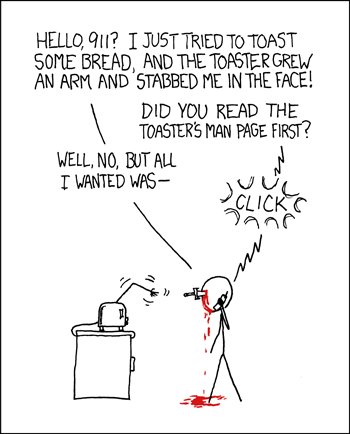
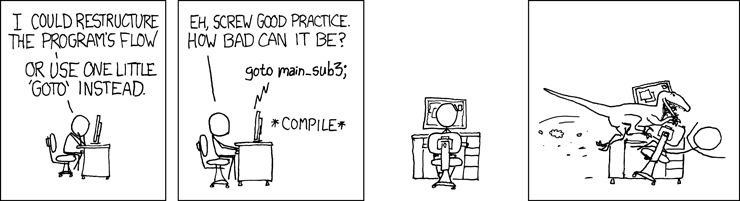
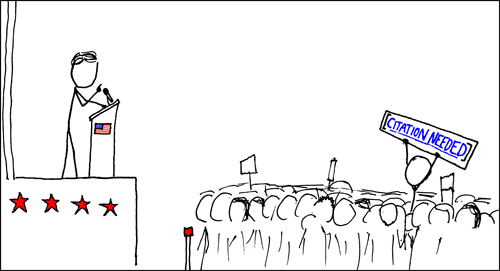
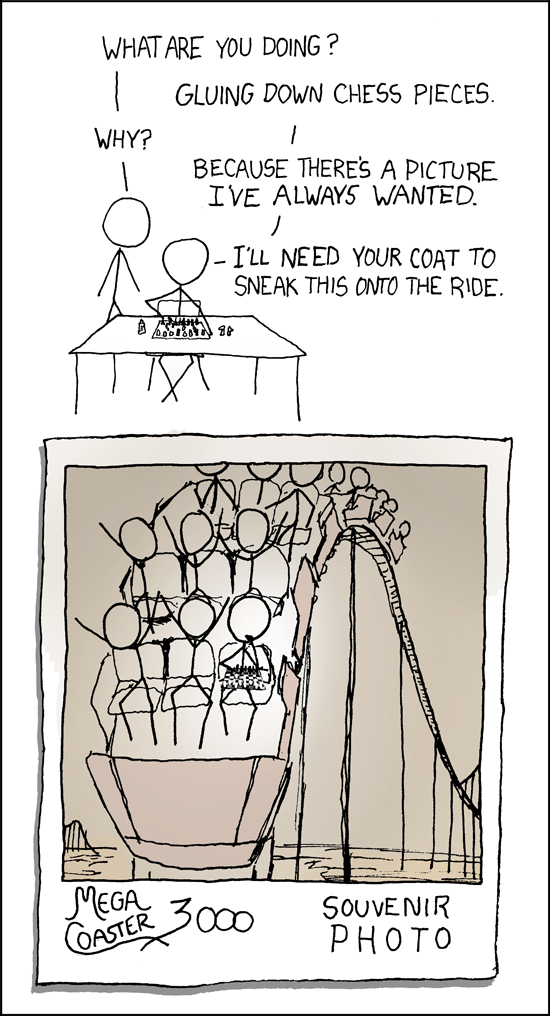
And kinda different they are :) Not the usual geek humor more like it-science/math/gamer humor. You really need some background knowledge to get most of the jokes, and that's why i like it :)

lisp_cycles.png


rtfm.png


goto.png


wikipedian_protester.png


chess_photo.png


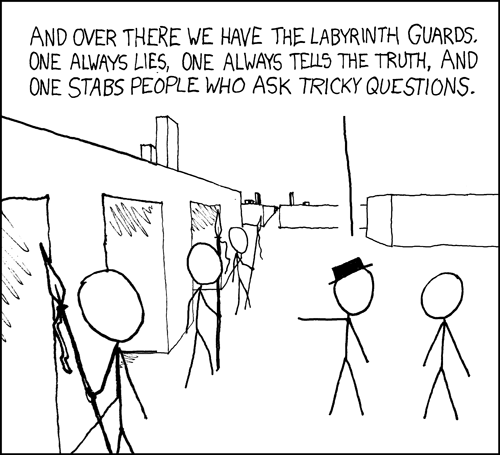
labyrinth_puzzle.png

and there are lots and lots more :)

have a look at

http://xkcd.org :)
 
One good thing about JUB is that you don't need to be tech-savy at all to use it. But once you wish to use more and more features you slowly advance your skills on your own and learn new things - like quoting, including images in your posts, customizing your signature and so on. Those are all things that you learn or wish to learn because you saw someone else using the feature.
But you hardly ever look someone over the shoulder while he is using JUB, so you don't see HOW someone uses JUB - just the results of it.
Here are some nifty little tricks that might ease your JUB experience. Maybe you know them, maybe you know some of them but for others everything might be new.


Quick Preview of a thread

We all know that - you click on the "New Posts" Button, and realize that while you were asleep - JUB certainly was not. Pages and pages of new and updated threads. Without reading a thread there is only the headline to know what it is about. Or if you already know the thread - the only indication for what might be new in the thread is that you can see who posted last. But there is also another way to learn a bit more about a thread. Place your mouse-pointer over the threads headline and wait a few seconds. A tool tip will pop-up and show you the first few words of the latest reply :)

Screenshot: http://justusboys.com/forum/userimages/4/6/5/287327.jpg

Only works after doing a search (or clicking "New Posts") or in the thread-overview of the individual forums.


Collapsing forums

Not intersested in meet ups? Or just don't care about the prn forums? There is quite a number of different JUB forums, especially after the recent overhaul. It easy to loose track of the forums that you really care for. It helps a lot to just remove the forums that you don't read, anyway. At the right side of every forum category there is small arrow symbol which will collapse the whole forum category into a single line - making more screen-space for the other forums. This setting is saved - so the next time you return to JUB you won't see the other forums anymore.

Screenshot: http://justusboys.com/forum/userimages/4/6/5/287328.jpg

Of course you can expand all collapsed forum at any time again.


Who posted?

I have to admit that this in my humble opinion isn't really a 'useful' feature - however in a recent thread many people were suprised that this feature exists and they haven't seen it before.
When you are looking at a [search result] there is a column which shows the number of posts in this particular thread. If you click on this number you will get a synopsis/breakdown of who posted how often in that thread.

Screenshot: http://justusboys.com/forum/userimages/4/6/5/287326.jpg
 
report.gif
Warning: Can lead to use JUB in an almost facebook kind of way ;)
report.gif


Recently I was annoyed with the JUB Buddylist always being in an extra window and being covered by other stuff where you are actually working with. Of course this is not a problem if you have two monitors (*sigh* I used to ;) ), but if you are stuck with one, I thought using the sidebar was a good alternative.
It wasn't hard to get it displayed in the sidebar, but I thought it would be cool if you could make it even easier, so easy that anybody could use it. Unfortunately there was no way of controlling the FF sidebar just with JScript (which is a good thing after all), so I was quickly at the point of needing to write a FF extension for it. After some reading, a bit trying, looking (Opensource is wonderful!), cursing about the lack of a debugger (Firebug to the rescue!), it finally was working! I bundled a quick release for the other mods to try, fixed a small display issue that star-warrior (buddy-whore! ;) ) pointed out. Seth gave me permission to host it on JUB servers, and so there it is:

http://www.justusboys.com/jub-sidebar/


Hope you like it ..|


screenshot.jpg
 
Status
Not open for further replies.
Back
Top