I just wanted to add support to what trinket and burke67 are saying.
It is almost certain that all of the "lost" files remain on your Windows hard drive and can be recovered with only a little effort.
You can pay someone to do this, but it is not that difficult to do yourself. Nor is it dangerous. You will not damage your system by trying this. If you were to take your computer to some shop for repairs, it is likely that what I am about to suggest is what they would do.
First, get to a working computer with an internet connection (maybe at a library or a friend). The computer will need to have a CD drive and a program for burning CDs. Bring with you a small flash drive (~1 GB is plenty), a couple of blank CD-ROM discs, and a Sharpie-style marking pen.
Download this file:
http://smokey01.com/CatDude/ISOs/PupRescue/2.5/PupRescue_2.5.iso
Save it to your flash drive. (The flash drive is only to avoid saving stuff to someone else's computer).
This is "PupRescue" - a version of Puppy Linux designed to rescue corrupted Windows computers. PupRescue is an operating system like Windows itself. But, PupRescue occupies only 190 MB, so it is a minimal download. It also looks and works a bit like Windows, so it should not be that frightening to use.
PupRescue downloads as an iso file. That is a special file that can be burned to a blank CD in a way that makes the CD bootable. You can't just copy the iso file to a CD and expect the CD to boot, however. When you burn the PupRescue.iso file to the blank CD, you must set the burner program to make the disk being created a bootable disc. How you do this will depend on what CD burner program you use.
Here are instructions on how to burn an iso file to a blank CD for most popular CD burner programs:
http://iso.snoekonline.com/iso.htm
Burn the disc as instructed for your burner program. Label it as the PupRescue disc. You are now done with the library/friend's computer.
Bring the PupRescue disc to your damaged laptop. Turn it on and enter the computer's BIOS setup program. How you do this will depend on your particular model of laptop. On most computers, you hold down the "Delete" key while booting. On some Dell models, you hold down the "F2" key. If you don't know how to do this for your particular computer, don't worry. Just pay attention to the messages that are flashing on the screen while the computer boots. It will usually tell you which key you need to press to configure the BIOS/Setup. Press this key as the computer is booting.
This step is only necessary because it is possible that your computer is configured to ignore a bootable CD sitting in your CD drive. If that is the case, the computer will go right to the hard drive and attempt to boot your damaged Windows installation. The goal here is to boot PupRescue from the CD.
Follow the BIOS instructions for setting the boot order to boot from the CD drive first, then the hard drive second. Open the CD drive tray, put your PupRescue disc in it, and close it. Save your BIOS settings as directed in your BIOS setup utility. The computer will reboot as you exit the BIOS setup utility.
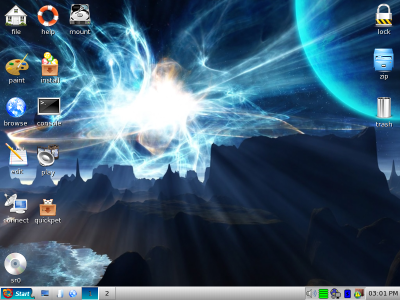
Your laptop will now boot PupRescue from the CD drive, instead of Windows from the hard drive. You will get a screen that looks something like this:
Click on the "file" icon. You should be able to navigate to all of your Windows folders and copy them to a flash drive, external usb hard drive, or burn them to blank DVDs.
Once you have backed up everything you want to save, reboot, reformat, and reinstall Windows. Then reinstall the programs you want and copy the files you just rescued back to Windows.
Keep the PupRescue disc in a place you can remember. It has a lot of special software on it to help you repair damage to Windows systems. So long as you continue to use Windows, you will need to rescue it from time to time with other OSs.