The Original Gay Porn Community - Free Gay Movies and Photos, Gay Porn Site Reviews and Adult Gay Forums

  • Welcome To Just Us Boys - The World's Largest Gay Message Board Community

    In order to comply with recent US Supreme Court rulings regarding adult content, we will be making changes in the future to require that you log into your account to view adult content on the site.
    If you do not have an account, please register.
    REGISTER HERE - 100% FREE / We Will Never Sell Your Info

    PLEASE READ: To register, turn off your VPN (iPhone users- disable iCloud); you can re-enable the VPN after registration. You must maintain an active email address on your account: disposable email addresses cannot be used to register.

Everything is deleted on my laptop

Dashriprock3172

Sex God
Joined
Jul 14, 2004
Posts
545
Reaction score
8
Points
18
Location
Memphis
I had some sort of virus one time that hide everything. They were they but it took a while to make them reappear. I would take it to someone who knows about viruses.
 
To start, I'd suggest download the free version of Malwarebytes and run the "full scan" (not quick scan), checkmarking any of your relevant drive letters before you scan, just to ensure it isn't a virus.

It sounds like it could be a problem with your Windows profile being corrupt or couldn't be loaded; in some situations, that mean it'll default to a generic profile which won't have your familiar files, links, settings. What OS are you running? (You didn't list your Windows version, i.e. XP, 7, 8, etc.) You mention you can't save things - there can also be a profile issue or Windows "thing" where you don't have the permissions anymore for the file or things go into a read-only mode.

What I would do next is determine whether the files you expect are still physically residing on your hard drive or not. They might still be there but not "seen" by your profile, especially if you stashed them in the default "My Desktop", "My Music", "My Programs" or whatever else. To check, open Windows Explorer (not Internet Explorer), Window Key-E, and search your entire hard drive, from the C:\ root, for a piece of name of a music file (in a format like, say, *Cyrus*.*) or one of the Word documents you knew the name of. It's entirely possible your files are still there and you might have to copy them to a temporary profile that you're running under.
 
You still haven't provided your Windows version as asked, but as for the "black screen", you can try booting into safe mode which can help with this issue. Let Malwarebytes do its work in this mode and reboot into regular mode when complete.
 
^PUM.hijack.startmenu is a torrent virus. What a shocker! Peerblock is amazing if you're using any torrent programs as it will automatically block "bad IPs". Also, it helps to scan each folder/zip before opening it. I equate to opening a mystery box from someone I don't know. This is probably the culprit that "ate" your My Documents folder. Without an image backed up, not sure if you could retrieve any files.

As for the other two, they're browser viruses. Again, Adblock and Adblockplus do wonders for having a "safe" browsing experience. If an anti-spyware program doesn't remove them, you will have to do a full uninstall of your browser [guessing firefox considering there are no cases of said viruses on chrome]; not just the program but any logs, caches and data related to it.
 
omg Jason, I hope you get this solved and your pc restored!!!
I recommend using Peerblock too, torrents make me paranoid.
 
I wish I could salvage my files.

Please follow my last paragraph of my first post to you, post #3 in this thread. It's very important when people are trying to help you in a thread that you actually read what they're writing; so far I've had to repeat things multiple times and ask things multiple times that you could have tried hours back. Anyway, the first thing is to determine if they reside at all in your hard drive or not. If they physically reside, I still think it's possible you're on a temporary Windows profile or a corrupt profile. You talk about a "black screen" which may simply be your Windows desktop wallpaper missing (because of being on a temporary or corrupt profile).

As for "The System Cannot Find The Path Specified", it might be trying to load a program or service that isn't there. It's possible that's trying to load the trojan and you cleaned it with MalwareBytes so it's causing an issue. Try downloading CCleaner and running it *only* for the "Registry" tab to review issues. Before actually making any changes, just review the issues it finds in a scan without doing anything. Also, from your Windows "Start" button, press it and type "msconfig" (no quotes) then enter. You will receive a small window where you can see not only what services are trying to load at boot but stuff in "Startup" which may or may not be nasty virii.
 
In my experience with these types of problems, it's a bit unusual your documents and music files would be gone entirely, unless your profile was so thrashed that it toasted the stuff associated with it (especially if you kept it in "My Documents", "My Music", etc.) or you had a particularly nasty destructive virus that sought out data files or something. So my instinct, until we determine otherwise anyway, is your files are still sitting on your drive, just your profile or aspects of Windows itself are a bit messed up. You can use that search method I described to search your entire drive for pieces of a filename you recognize (or just do *.docx or *.mp3 or whatever and let it bring all results) to find out if they're still "physically" there, and what path they might actually be in. If they are, just copy them out into another folder (create a folder on C:\ called CupidBoy for instance, even better D:\ or another physical drive or at least partition) or your current profile, but let's firmly establish if they're sitting around on your drive before you panic that they might not be!
 
If Windows is damaged like the start menu issue, there are still some alternatives for actually accessing your hard drive and searching for or rescuing your data files off of it. You could create a small Linux build on a USB key and boot from that. My point is that you can separate Windows and how it's acting strangely on you, from your data files, as they're really entirely two separate things. But admittedly creating a bootable USB disc and fiddling with an OS that can be booted that way might be for hobbyists or techies and not an average user - you can do it if you want to put in a few hours and learn something like this, and save money for a repair shop, but if you're not comfortable with it, the service place will likely use a similar technique.

One thing I would also do if it were me that was suffering this issue is image the hard drive, bit-for-bit (for instance using Drive Snapshot at drivesnapshot.de), then do a fresh Windows installation. The fresh installation alone (depending on how it's done) could leave your data files intact, depending on where they were residing, but if not, or you want to clean things up very thoroughly by doing a complete format and reinstall, you have your backup drive there. Then, you can connect to that drive as a different letter - whether it's an external hard drive or another internal one - and simply search it or browse for your files, without ever running the operating system from it. If you have access to a friend or family member's computer you could try this technique in a similar way.
 
A quick and easy 'poke-about' option would be to download and burn a DVD copy of linuxmint or ubuntu. Both will boot off the CD and let you mount your Windows filesystems
 
I just wanted to add support to what trinket and burke67 are saying.

It is almost certain that all of the "lost" files remain on your Windows hard drive and can be recovered with only a little effort.

You can pay someone to do this, but it is not that difficult to do yourself. Nor is it dangerous. You will not damage your system by trying this. If you were to take your computer to some shop for repairs, it is likely that what I am about to suggest is what they would do.

First, get to a working computer with an internet connection (maybe at a library or a friend). The computer will need to have a CD drive and a program for burning CDs. Bring with you a small flash drive (~1 GB is plenty), a couple of blank CD-ROM discs, and a Sharpie-style marking pen.

Download this file: http://smokey01.com/CatDude/ISOs/PupRescue/2.5/PupRescue_2.5.iso

Save it to your flash drive. (The flash drive is only to avoid saving stuff to someone else's computer).

This is "PupRescue" - a version of Puppy Linux designed to rescue corrupted Windows computers. PupRescue is an operating system like Windows itself. But, PupRescue occupies only 190 MB, so it is a minimal download. It also looks and works a bit like Windows, so it should not be that frightening to use.

PupRescue downloads as an iso file. That is a special file that can be burned to a blank CD in a way that makes the CD bootable. You can't just copy the iso file to a CD and expect the CD to boot, however. When you burn the PupRescue.iso file to the blank CD, you must set the burner program to make the disk being created a bootable disc. How you do this will depend on what CD burner program you use.

Here are instructions on how to burn an iso file to a blank CD for most popular CD burner programs: http://iso.snoekonline.com/iso.htm

Burn the disc as instructed for your burner program. Label it as the PupRescue disc. You are now done with the library/friend's computer.

Bring the PupRescue disc to your damaged laptop. Turn it on and enter the computer's BIOS setup program. How you do this will depend on your particular model of laptop. On most computers, you hold down the "Delete" key while booting. On some Dell models, you hold down the "F2" key. If you don't know how to do this for your particular computer, don't worry. Just pay attention to the messages that are flashing on the screen while the computer boots. It will usually tell you which key you need to press to configure the BIOS/Setup. Press this key as the computer is booting.

This step is only necessary because it is possible that your computer is configured to ignore a bootable CD sitting in your CD drive. If that is the case, the computer will go right to the hard drive and attempt to boot your damaged Windows installation. The goal here is to boot PupRescue from the CD.

Follow the BIOS instructions for setting the boot order to boot from the CD drive first, then the hard drive second. Open the CD drive tray, put your PupRescue disc in it, and close it. Save your BIOS settings as directed in your BIOS setup utility. The computer will reboot as you exit the BIOS setup utility.

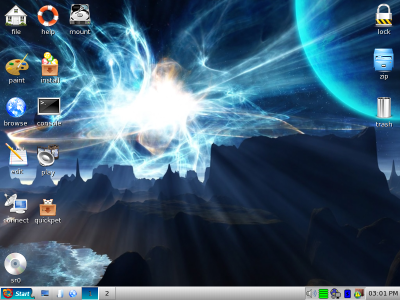
Your laptop will now boot PupRescue from the CD drive, instead of Windows from the hard drive. You will get a screen that looks something like this:

attachment.php


Click on the "file" icon. You should be able to navigate to all of your Windows folders and copy them to a flash drive, external usb hard drive, or burn them to blank DVDs.

Once you have backed up everything you want to save, reboot, reformat, and reinstall Windows. Then reinstall the programs you want and copy the files you just rescued back to Windows.

Keep the PupRescue disc in a place you can remember. It has a lot of special software on it to help you repair damage to Windows systems. So long as you continue to use Windows, you will need to rescue it from time to time with other OSs.
 

Attachments

  • puprescue25.png
    puprescue25.png
    556.8 KB · Views: 53
Back
Top